Export certificate and private key in Windows
Prerequisites
During the initial import of the certificate, the key must have been marked as exportable:
Mark key as exportable during initial import
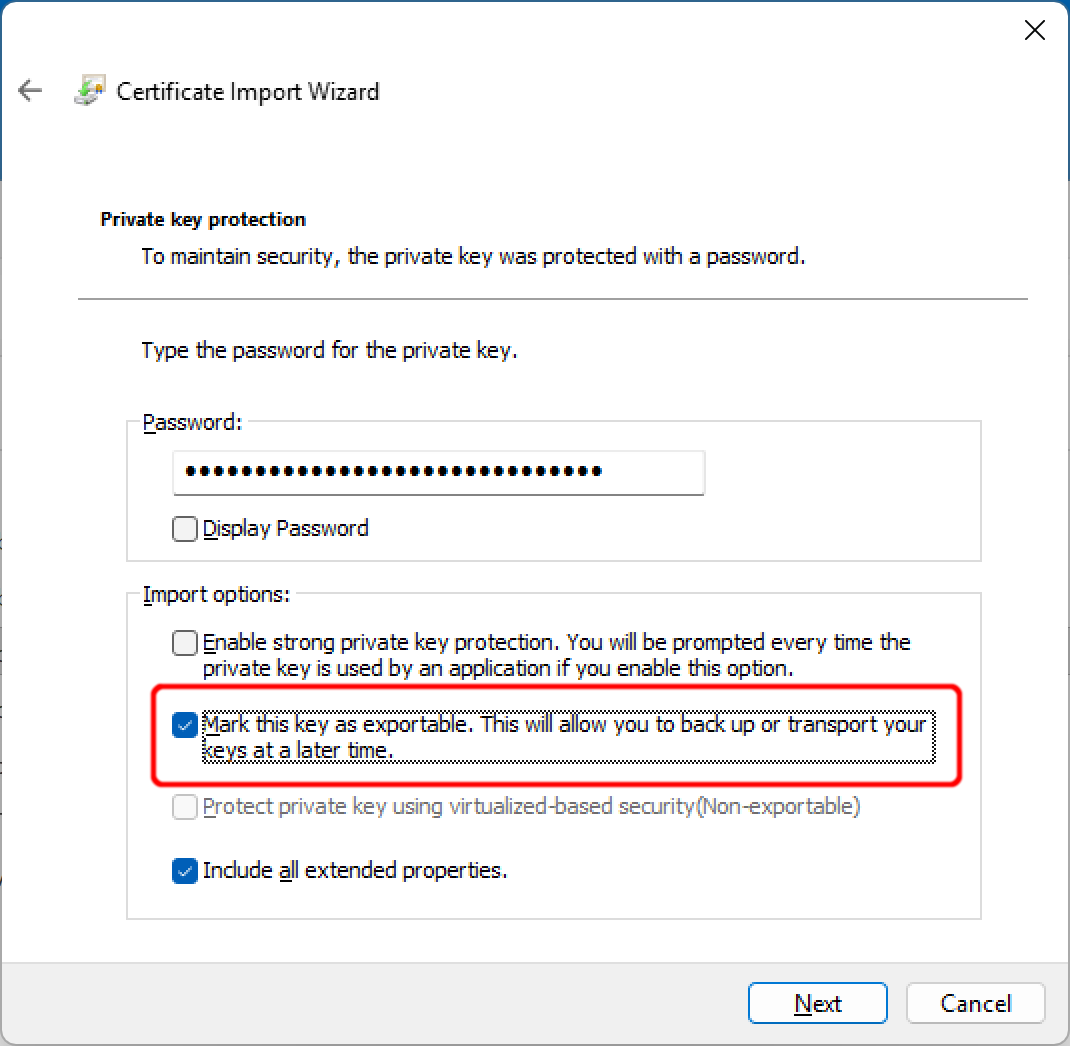
If this option was not set, the only option left is the method described here.
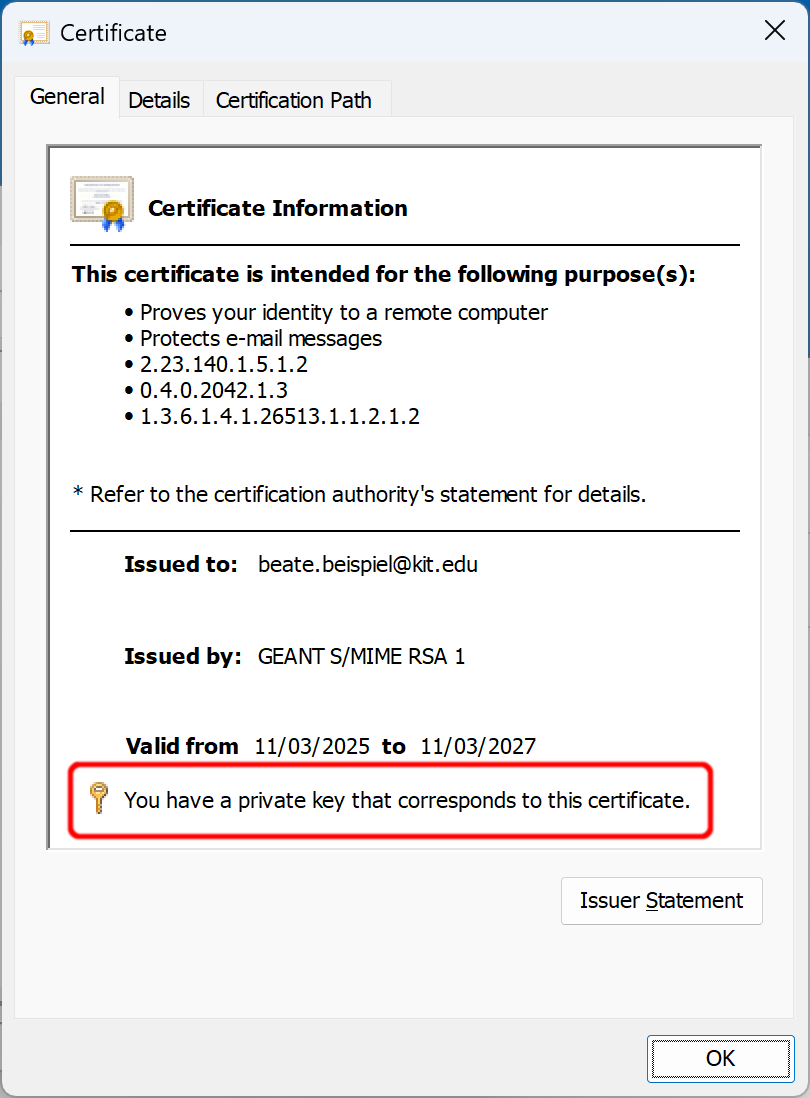
The private key must be present in Windows if you want to export it now. This can be checked by double-clicking on the certificate in the Certificate Manager. The certificate property dialog must explicitly state You have a private key that corresponds to this certificate:
Certificate properties: You have a private key for this certificate
Export certificate & private key
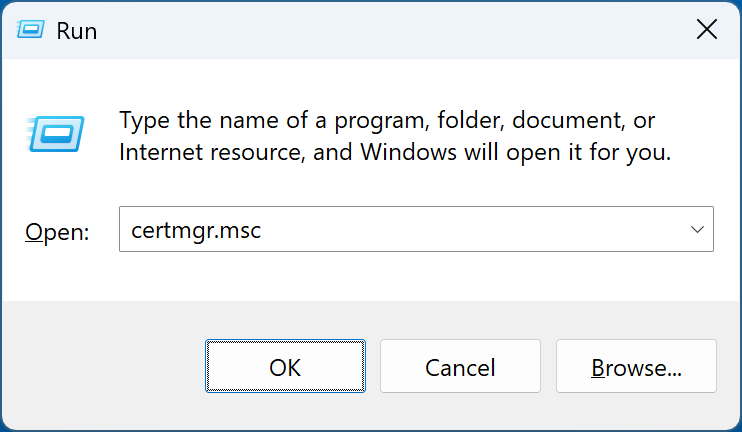
Open the Certificate Manager (press Win+R, type certmgr.msc, and press Enter):
On the left side, open the Certificates subfolder of the Personal folder:
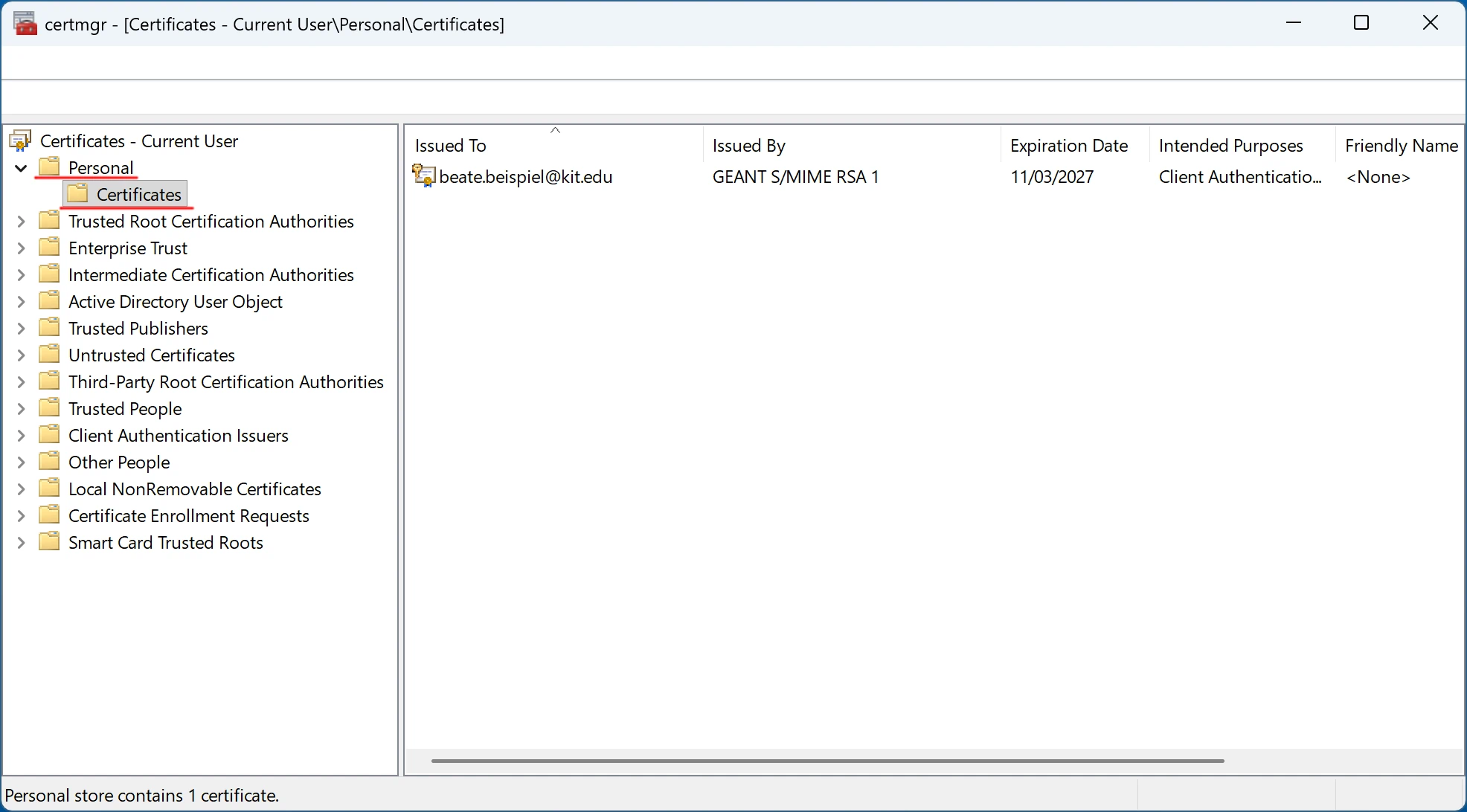
Open the context menu (right-click) for the certificate you want to export and select Export… from the submenu of All Tasks:
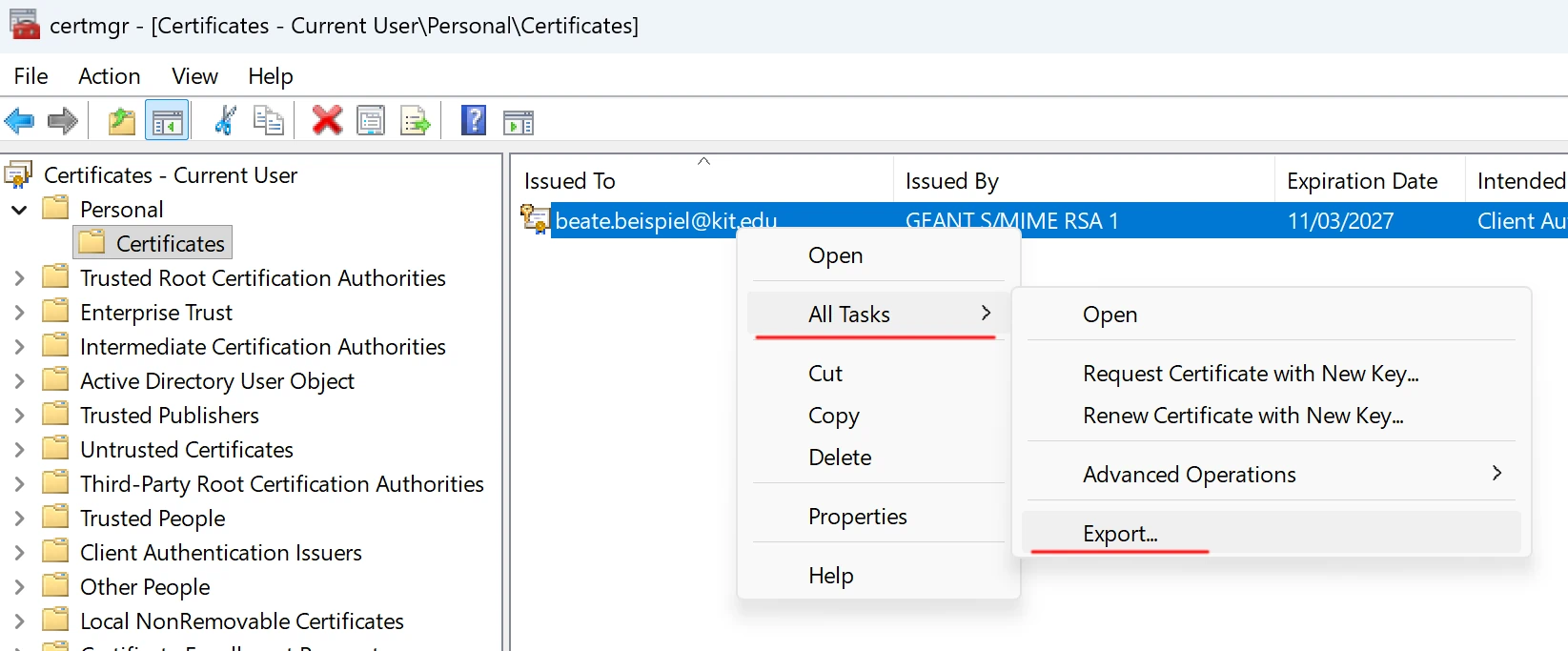
The Certificate Export Wizard will now open. We will not show any more screenshots for steps where you can just click “Next” or where the step is “obvious” (for example, selecting a suitable file name). Select the certificate you want to export and click “Next.”
Make sure to export the private key as well:
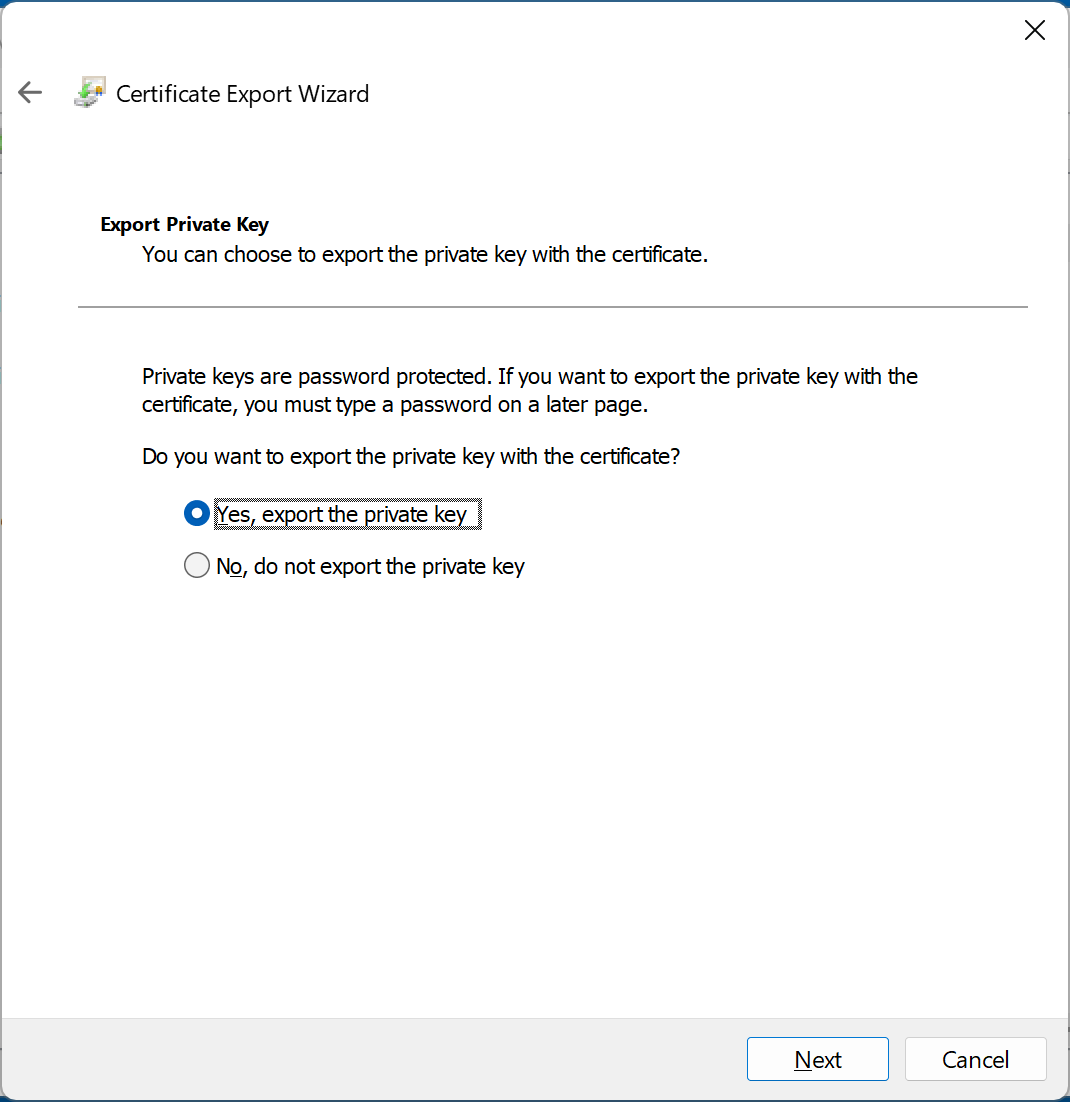
If this menu is not available or the option is grayed out, either the certificate does not have a private key stored with it, or it was not marked as exportable during import (see Prerequisites).
Select Personal Information Exchange - PKCS #12 (.PFX) as the export format with the settings shown in the screenshot:
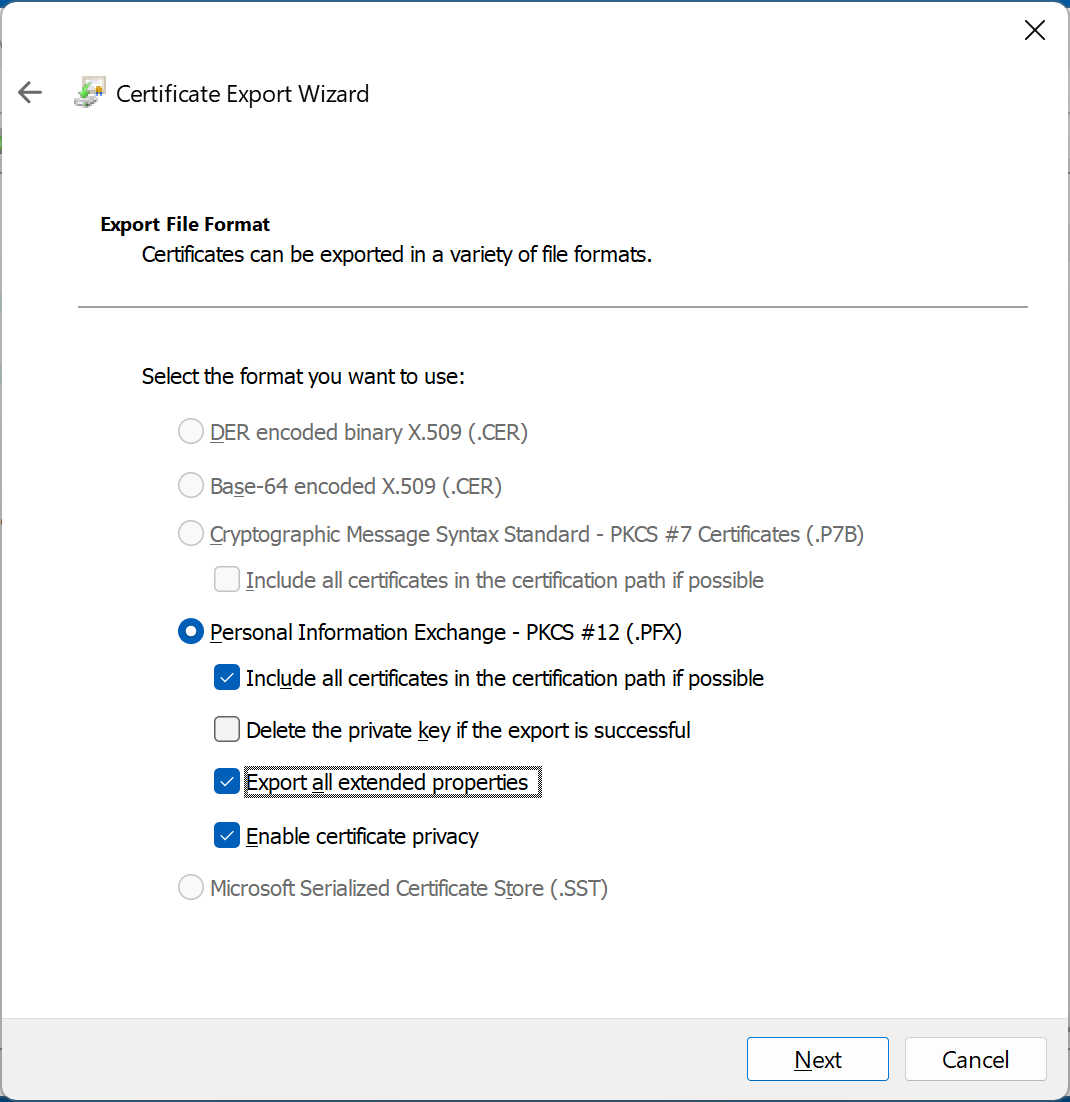
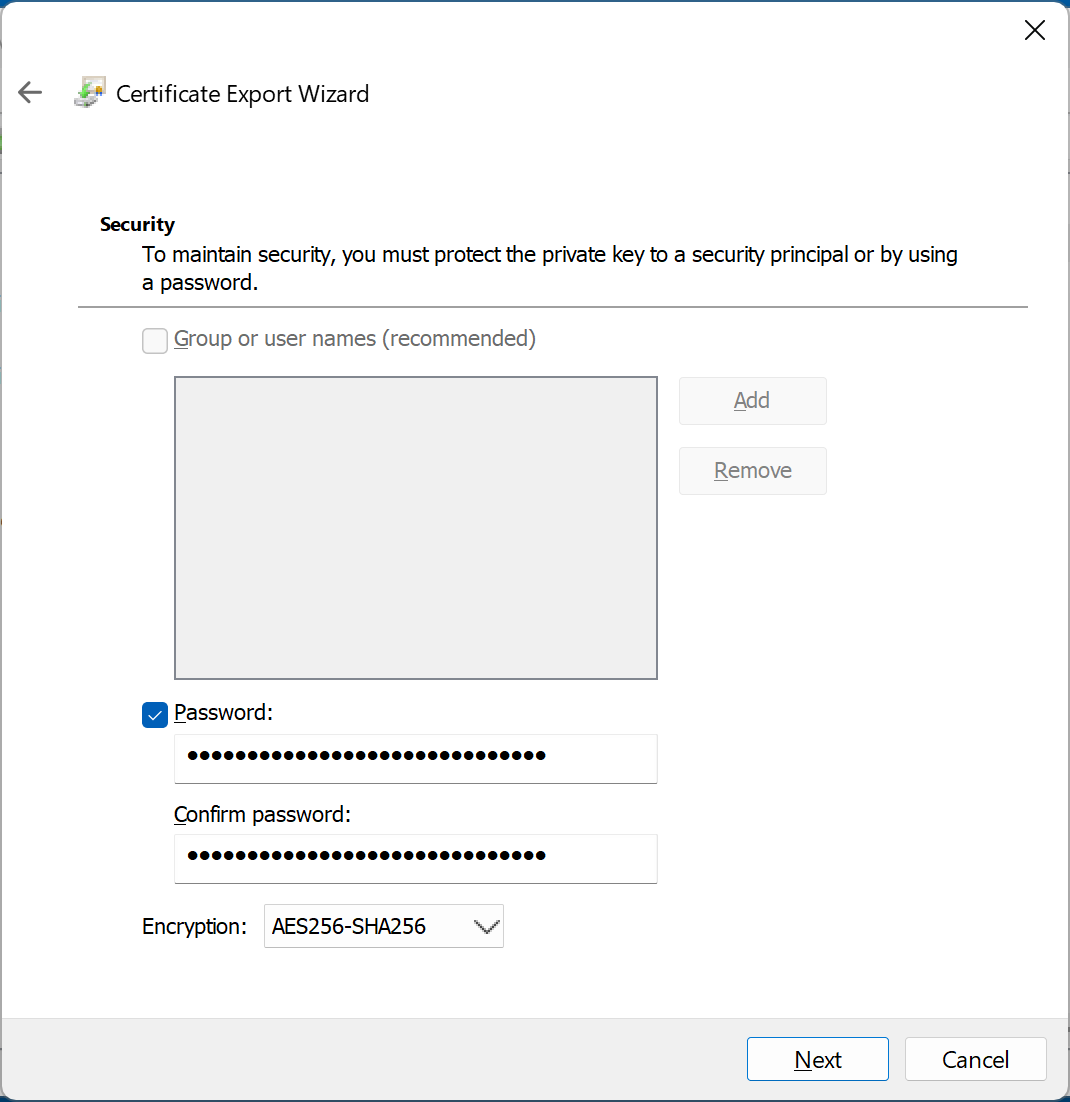
Choose a secure password and select AES256-SHA256 as Encryption:
If the export was successful, a confirmation message will be displayed: